
Installing Software
Users can add applications and packages without requiring root privileges. Workbench provides built-in support for Homebrew, Flatpak, and Distrobox.
Homebrew
Homebrew is the default method of installing software.brew search can be used to find packages, andbrew install will add them.
As an example, this is how a user would install the GitHub command-line tool:brew install gh
When installing software, search Homebrew first. In addition to Homebrew’s standard packages, Caligra provides certain applications packaged for Workbench, including:
- 1Password
- Google Chrome
- Cursor
- Tailscale
- Visual Studio Code
- Zed
Homebrew documentation is available at https://brew.sh
Flatpak
Flatpak is primarily used to deliver GUI applications bundled with all of their dependencies. Users can search for software onFlathub, and click the install button. Workbench will automate the installation.
Flatpak documentation is available at https://flatpak.org/
Software can be installed from https://flathub.org/
Distrobox
Distrobox helps users run container images of other operating systems, effectively providing access to other Linux distributions within Workbench. This is useful in a variety of scenarios, for example:
- when a package is not available via Homebrew or other sources
- when the user has a preferred workflow from a particular Linux distribution
- when a development team shares a standard project environment
- when creating an environment that matches a production server
In a Distrobox session, users have root privileges and can use the image’s package manager.
As an example, a user can create a Distrobox container based on Ubuntu:distrobox create ubuntu --image ubuntu:latest
Then, the Distrobox container can be used with distrobox enter:[user@caligra-workbench ~]$ distrobox enter ubuntu
📦[user@ubuntu ~]$ cat /etc/lsb-release
DISTRIB_ID=Ubuntu
DISTRIB_RELEASE=26.04
DISTRIB_CODENAME=resolute
DISTRIB_DESCRIPTION="Ubuntu 26.04 LTS"
In a Distrobox session, sudo is available and the file system is writable. Software can be installed with the relevant package manager for the running container:sudo apt install gnome-calculator
Distrobox containers do not have a separate display output; GUI programs will appear as regular Workbench windows:
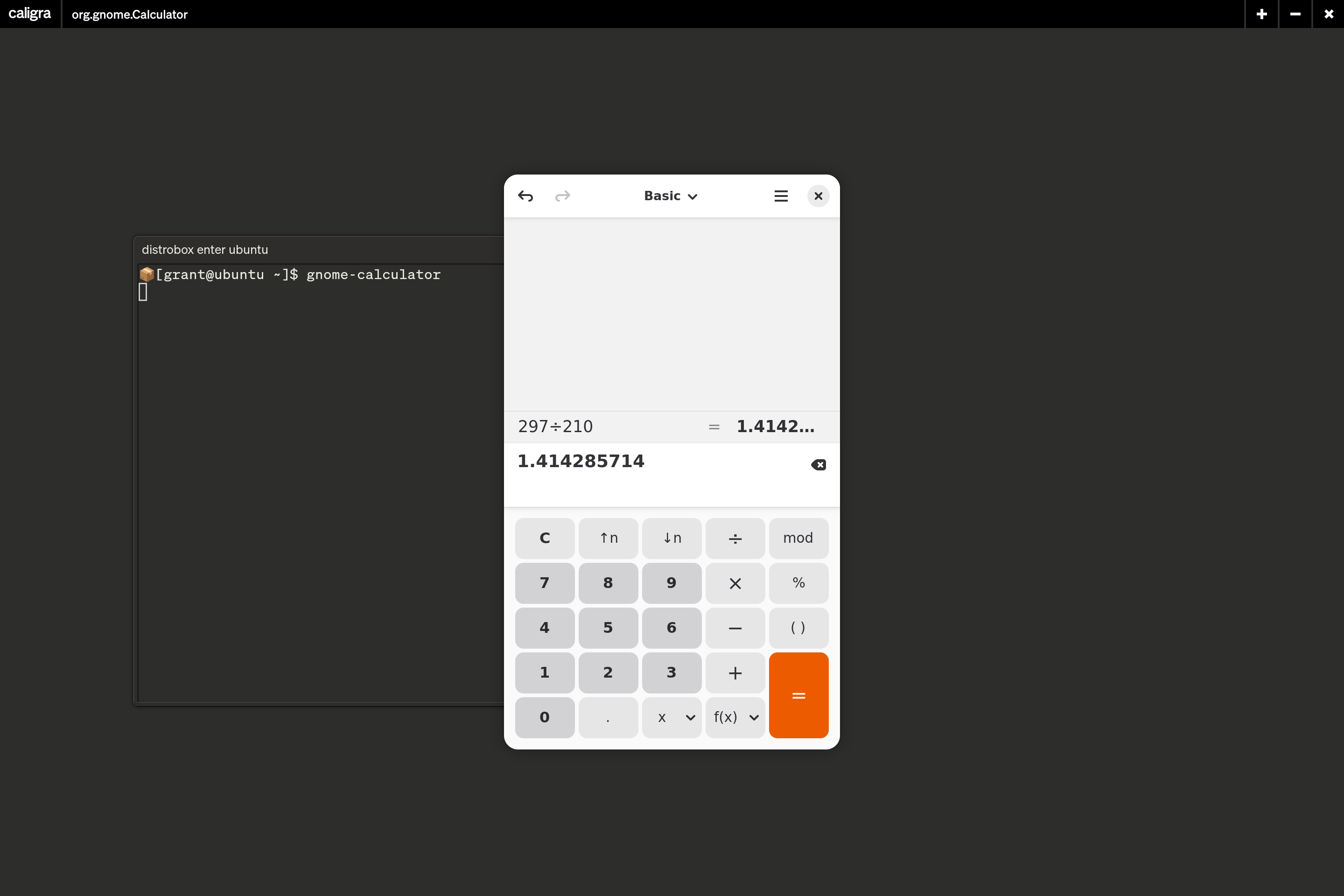
Distrobox applications can be added to the System Menu and the Launcher for faster access from Workbench using distrobox-export.
Distrobox documentation is available at https://distrobox.it/